
Big things start with
a simple PDF.
Convert, edit and organize your documents.
One simple workspace. A little less busywork.

Your everyday PDF toolkit
11 everyday essentialsNo tools found. Try another search.
图片转 PDF · 使用说明
有哪些图片排版方式?
可选择 A4、美式信纸或自动尺寸,逐张旋转并预览。HEIC 仅支持符合限制的标准动态范围静态图片。
文件在哪里处理?
文件保留在当前浏览器中。选择文件、调整参数、处理并下载;每次选择最多 50 MB,每份 PDF 最多 100 页。刷新或离开工具会清除所选文件。
A simpler way
to get it done.
Easy to use
Less searching. More doing.
Browser based
No installation needed.
Private by design
Your files stay on your device.
Start with one small task.
Choose the task you need. After downloading, open the result to check it.
Combine two PDFs
- Open Merge PDF and choose two files.
- Check the file order, then process and download.
- Open the result and check the page count and order.
Keep only the pages you need
- Open Split PDF and choose a document with at least three pages.
- Enter 3,1 to keep those pages in that order. Choose one PDF or separate files in a ZIP.
- Process, download and open the result.
Fix a sideways page on your phone
- Open Rotate PDF, choose a file and enter the page number.
- Select the rotation, then process and download.
- Open the saved PDF to check its orientation. On iPhone, use Share then Save to Files if a preview opens.
A minute of feedback helps.
After trying a tool, tell us what worked and what slowed you down.
- What task did you try, and how often do you do it?
- Could you download and open the result?
- Which step took the most effort?
- What do you normally use for this task?
Opens an email draft. Review it and send it yourself. Nothing is sent automatically.
If your mail app does not open, copy this address into your email service: chinahbzj@gmail.com
Please send only task descriptions and suggestions. Do not attach PDFs or include document contents. Your email or form provider will receive what you choose to send.
A few things you might be wondering.
Do I need to install any software?
No. Open a tool, choose your files and download the result. Everything runs in your browser.
Which file formats can I work with?
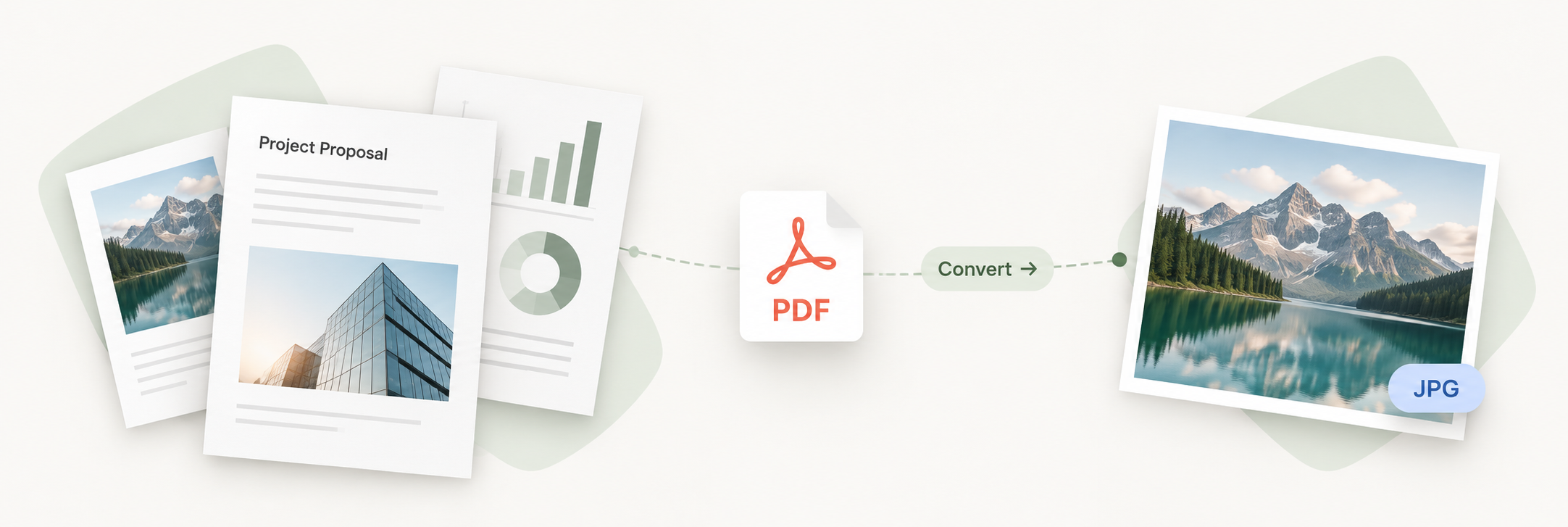
Work with PDF documents, convert JPG, PNG and supported HEIC still images to PDF, or export PDF pages as images.
Can I use Paper in Place on my phone?
Yes. The tools work in modern mobile browsers. Large documents may work better on a computer.
Where are my documents processed?
All document processing happens on this device. There is no upload endpoint, cloud storage or account to manage. Download your result, then close the tab.
Only your language preference is saved in this browser. The website host receives ordinary page and resource requests, such as your IP address; your selected documents are not sent with them.
How do I save a PDF on iPhone?
Tap Download after processing. If Safari opens a PDF preview, use Share, then Save to Files. Open the saved result in Files to check it. Browser controls may vary by version.
Which limits should I know about?
Select up to 50 MB in total, with at most 100 pages per PDF. For large scans, select fewer pages or lower the image resolution. Use Unlock PDF with a known password for protected files. OCR and Office conversion are not supported.
What happens to forms, bookmarks and links?
Copying pages makes form values non-editable. Bookmarks and internal links follow retained pages; destinations removed from the output are dropped. Links to duplicated pages target the first copy. Image-based compression removes interactive forms, links and searchable text.
How can I report a problem?
Describe the tool, browser, device, page count and error message. Do not attach private documents or include their contents. If needed, reproduce the issue with a public sample.